Microsoft Sharepoint Web Parts
Exchange Calendar Web Part
Installation Instructions:
- download the EWS Calendar Web Part Installation Instructions (PDF file)
- deploy the feature to your server/farm as described in the instructions.
- Navigate to a page where you would like to place the webpart and choose "Site Actions/Edit Page"
- Add the web part to the appropriate zone. The web part is listed in the "Amrein Engineering" web part gallery section
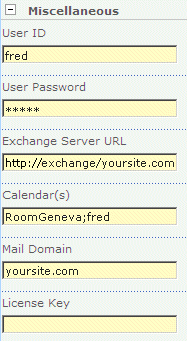
- Configure the Web Part properties in the Web Part Editor "Miscellaneous" pane section as described in the Installation Instructions:
- User ID:
enter the name of the Windows account under which the calendar data will be fetched from the Exchange server. This user needs to have sufficient rights to be able to read the desired calendar data
- User Password:
enter the password of the above user account.
- Exchange Server URL:
enter the web domain name of your Exchange web frontend server (do also include the leading "http://" or "https://"). This typically is the same address as your Outlook Web Access (OWA) URL but without "/owa". Please do NOT enter the trailing �/EWS� or the trailing "/OWA".
Examples:
https://yourserver.com
http://yourserver.com
Examples with subdomain:
https://yoursubdomain.yourserver.com
http://yoursubdomain.yourserver.com
You can check the validity of the above URL with your browser by entering
http(s)://yourserver.com/EWS/Exchange.asmx
The Exchange Server should now return an XML page.
- Mailbox Calendar(s):
enter the mailbox name(s) of the calendar(s) to be displayed (separate the names with semicolons).
Use the {uid} placeholder to inject the current user's name.
Use the {usermail} placeholder to inject the current user's e-mail address.
You can alternatively use a web part connection to select the mailbox calendar to be displayed.
Example:
john;{uid};Room707
Calendar Color Coding:
You can optionally individually color the calendar entries for each calendar user by adding the desired color (preceded by a colon) to each mailbox name as follows:
Example:
john:yellow;Room707:#CCFFCC;harry:red
Enter either the HTML color names (as eg. "red" etc.) or use hexadecimal RRGGBB coding (as eg. "#CCFFCC")
- Public Folder Calendar(s):
enter the public folder name(s) of the calendar(s) to be displayed (separate the names with semicolons).
Examples:
Meeting Room 101
Meeting Rooms/Room 202
- Mail Domain:
enter the domain name of your Exchange mail server. This typically corresponds with the part of your mail addresses to the right of the @ character.
- Time Zone Offset:
Enter the optional desired time zone offset in minutes
- Busy Type Colors:
Enter the desired Busy Type color codings (either as HTML color names or #RRGGBB values) in the following order:
free;tentative;busy;out of office.
The default values reflect the standard Microsoft Outlook color settings.
Leave this field empty if you don't want to display the free/busy colors.
- Default View: choose the desired startup calendar view (Month, Week or Day)
- Hide Appointment Location: allows to show or hide the display of the appointment's location.
- Hide Event Start Time: allows to show or hide the display of the appointment's start time.
- Suppress Week View option: shows or hides the calendar's "Week View" menu option.
- Export to CSV: Show/hide the "Export" button for exporting the calendar items to Excel/CSV.
- CSV Separator: Enter the desired CSV field separator character (Default=Comma). Specify a semicolon in countries which use the comma as a decimal separator.
- Localization: (Calendar List web part only) optionally enter the following 7 values (separated by semicolons) in your local language if you want to override the English strings corresponding to the
- Header of "Name" column
- "Week of " Header in Week View
- "all day"
- the 4 free/busy strings (free/busy/tentative/out of office)
Example (German):
Kalender;Woche vom;ganzer Tag;frei;besetzt;mit Vorbehalt;abwesend
- Cache Retention Time: Enter the public folder cache retention time in minutes
- License Key:
enter your Product License Key (as supplied after purchase of the Enterprise license).
Leave this field empty if you are using the free evaluation version. |
|
 More FAQ EWS Calendar Web Part
Technical Support Contact Information
More FAQ EWS Calendar Web Part
Technical Support Contact Information
If you find that you cannot resolve an issue using the above tools, our Technical Support staff will be ready to handle your technical support needs. You can reach our staff by phone or by email.
Phone: +41 (0)62 823 75 75 (9am - 5pm GMT)
Fax : +41 (0)62 823 75 74
Email: [email protected]
© 2026 AMREIN ENGINEERING AG




 Great stuff! The Amrein parts have made our intranet a better looking, easier to navigate and more useful site at a reasonable price. Recommended.



 Web Part Installation Instructions (WSS3.0/MOSS 2007)