Sharepoint Web Parts 
Digital Clock Web Part
Stock Chart Web Part
Stock Quotes Web Part
Quote of the Day Web Part
"Spotlight On.." Web Part
"Tip of the Day" Web Part
Lightbox Web Part
Weather Web Part
Slideshow Web Part
Currency Rates Web Part
Media Player Web Part
YouTube Player Web Part
Org Chart Web Part
Tiles Web Part
Hero Web Part
Bullet Graph Web Part
RSS Feed Ticker Web Part
SQL Viewer Web Part
Google Map Web Part
Quick Poll Web Part
Quick Survey Web Part
Audio Player Web Part
Google GeoMapper Web Part
SQL Chart Web Part
Exchange Calendar Web Part
Podcast Web Part
Filter Web Part
Image Rotator Web Part
Navigator Web Part
KPI Web Part
Page Hits Web Part
Picture Menu Web Part
Timer Web Part
SQL Bullet Graph Web Part
User Spotlight Web Part
List View Web Part
Staff Directory Web Part
Birthday Reminder Web Part
News Carousel Web Part
Team Members Web Part
Classifieds Web Part
Image Menu Carousel Web Part
Timeline Web Part
Banner Rotator Web Part
AZ Index Web Part
Blog Roll Up Web Part
Discussion Roll Up Web Part
Document Roll Up Web Part
News Roll Up Web Part
Task Roll Up Web Part
Calendar Roll Up Web Part
Quick Form Web Part
Twitter Web Part
Upcoming Events Web Part
Welcome Web Part
Color Calendar Web Part
Image Carousel Web Part
List Rotator Web Part
List Search Web Part
Web Part Support
Web Part Bundle
|
Microsoft Sharepoint Web Parts
List Search Sharepoint Web Part
Installation Instructions:
- download the List Search Web Part Installation Instructions (PDF file, see above)
- either install the web part manually or deploy the feature to your server/farm as described in the instructions.
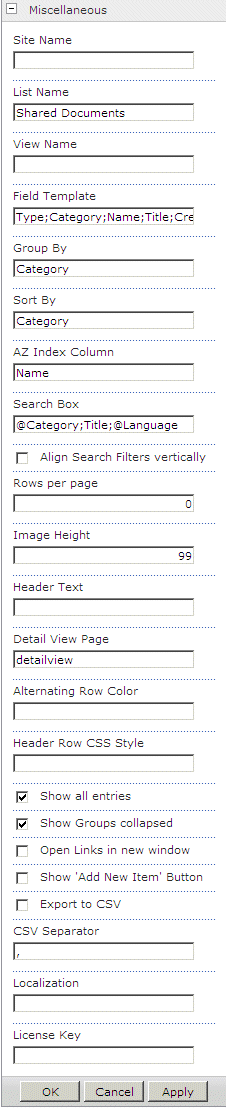
- Configure the following Web Part properties in the Web Part Editor "Miscellaneous" pane section as needed:
- Site Name: Enter the name of the site that contains the List or Library:
- leave this field empty if the List is in the current site (eg. the Web Part is placed in the same site)
- Enter a "/" character if the List is contained in the top site
- Enter a path if the List in in a subsite of the current site (eg. in the form of "current site/subsite")
- List Name: Enter the name of the desired Sharepoint List or Library
Example: Project Documents
- View Name: Optionally enter the desired List View of the list specified above. A List View allows you to specify specific data filtering and sorting.
Leave this field empty if you want to use the List default view.
If you enter multiple List Views (separated by semicolons)
All Items;USA;Europe;Asia
the user will be able to interactively choose one of the specified Views.
- Field Template: Enter the List columns to be displayed (separated by semicolons).
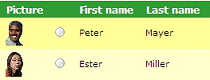
Pictures can be attached (via File Upload) to the Sharepoint List items and displayed using the symbolic �Picture� column name.
If you want to allow users to edit their own entries, please add the symbolic �Username� column name to the Field Template. An �Edit� symbol will then displayed to allow the user to navigate to the corresponding Edit Form:
Example:
Type;Name;Title;Modified;Modified By;Created By
Friendly Header Names:
If you would like to display a �friendly header name� instead of the default property name please append it to the User property, separated by the �|� pipe symbol.
Example:
Picture;LastName|Last Name;FirstName;Department;Email|Email Address
Hiding individual columns:
You can hide a column by prefixing it with a "!" character.
The following example hides the "Department" column:
LastName;FirstName;!Department;WorkEmail
Suppress Column wrapping:
You can suppress the wrapping of text inside a column by prefixing it with a "^" character.
LastName;FirstName;Department;^AboutMe
Showing the E-Mail address as plain text:
You can opt to display the plain e-mail address (instead of the envelope icon) by appending "/plain" to the WorkEmail column:
LastName;WorkEmail/plain;Department
- Group By: enter an optional User property to group the rows.
- Sort By: enter the List column(s) to define the default sort order. You can add multiple properties separated by commas. Append "/desc" to sort the column descending.
Examples:
Department
Department,LastName
Lastname/desc
The columns headings can be clicked by the users to manually define the sort order.
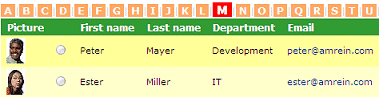
- AZ Index Column: enter an optional List column to display the AZ filter in the list header.
If an "!" character is appended to the property name, the "A" index will be forced when visiting the page.
Example: LastName!
- Search Box: enter one or more List columns (separated by semicolons) to allow for interactive searching.
Example: LastName;FirstName
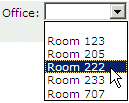
If you want to display a search filter as a dropdown combo, please enter it with a leading "@" character:
LastName;FirstName;Department;@Office
Friendly Search Box Labels:
If you would like to display a �friendly label" instead of the default property name please append it to the User property, separated by the �|� pipe symbol.
Example:
WorkPhone|Office Phone;Office|Office Nbr
- Align Search Filters vertically: allows you to align the seach input boxes vertically to save horizontal space:
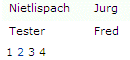
- Rows per page: the List Search web part supports paging and lets you specify the desired number of rows per page.
Enter "0" to display all the rows returned.
- Image Height: specify the image height in pixels if you include the "Picture" property.
Enter "0" if you want to use the default picture size.
- Header Text: enter an optional header text. Please note that you can embed HTML tags if needed. You can additionally specify the text to be displayed if the "Show all entries" option is unchecked and the users has not performed a search yet by appending a "|" character followed by the text.
Example:
This is the regular header text|This text is only shown if the user has not yet performed a search
- Detail View Page: enter an optional column name prefixed by "detailview=" to link a column to the item detail view page. Append the "/popup" option if you want to open the detail page in a Sharepoint 2010/2013 dialog popup window.
Examples:
detailview=LastName
detailview/popup=Title
- Alternating Row Color: enter the optional color of the alternating row background (leave blank to use default).
Enter either the HTML color names (as eg. "red" etc.) or use hexadecimal RRGGBB coding (as eg. "#CCFFCC"). Enter the values without the double quotes.
You can also change the default background color of the non-alternating rows by appending a second color value separated by a semicolon.
Example: #ffffcc;#ffff99
The default Header style can be changed by adding the "AESD_Headerstyle" appSettings variable to the web.config "appSettings" section:
<appSettings>
<add key="AESD_Headerstyle" value="background:green;font-size:10pt;color:white" />
<appSettings>
- Show Column Headers: either show or suppress the List column header row.
- Header Row CSS Style: enter the optionall header row CSS style(s) as needed.
Example:
color:blue;white-space:nowrap
- Table Style: choose one of the below preconfigured thable styles:
- Default
- Simple
- Horizontal
- Metro
- Grid
- Show Groups collapsed: either show the groups (if you specify a column in the "Group By" setting) collapsed or expanded when entering the page.
- Enforce Security: hides the web part if user has no access to the site or the list. This avoids a login prompt if the user has not at least "View" permission on the list or site containing the list.
- Show all entries: either show all directory entries or none when first visiting the page.
You can append a specific text to the "Header Text" field (see above) which is only displayed if this option is unchecked and no search has yet been performed by the user.
- Open Links in new window: either open the links in a new window or in the same browser window.
- Link Documents to Office365: open the Word, Excel and Powerpoint documents in the Office365 web viewer.
- Show 'Add New Item' Button: either show or suppress the "Add new item button" to let users add new items to the list (this option is security-trimmed).
- Export to CSV: Show/hide the "Export" button for Excel CSV File Export
- CSV Separator: Enter the desired CSV field separator character (Default=Comma). Use a semicolon in countries which use the commas as a decimal separator.
- Localization: enter the following 4 values (separated by semicolons) in your local language if you need to override the English strings corresponding to the
- Search button text,
- A..Z menu "View all" option,
- the text displayed for Hyperlink columns
- the optional "Group By" name (if grouping is enabled)
Default:
Search;View all;Visit
Example (German):
Suche;Alle;externer Link;Gruppe
- License Key: enter your Product License Key (as supplied after purchase of the "List Search Web Part" license key).
Leave this field empty if you are using the free 30 day evaluation version.
|
|
Technical Support Contact Information
If you find that you cannot resolve an issue using the above tools, our Technical Support staff will be ready to handle your technical support needs. You can reach our staff by phone or by email.
Phone: +41 (0)62 823 75 75 (9am - 5pm GMT)
Fax : +41 (0)62 823 75 74
Email: [email protected]
© 2026 AMREIN ENGINEERING AG
|

 Excellent web parts with excellent support. Excellent web parts with excellent support. Murdock Rodgers, Sussex NB Canada
Staff Directory Web Part Premium Annual Support
Premium technical support provides an unlimited number of incidents per year (4 hours response time, office hours GMT+1), free service packs, updates and new releases.
Price: USD 175.00
|